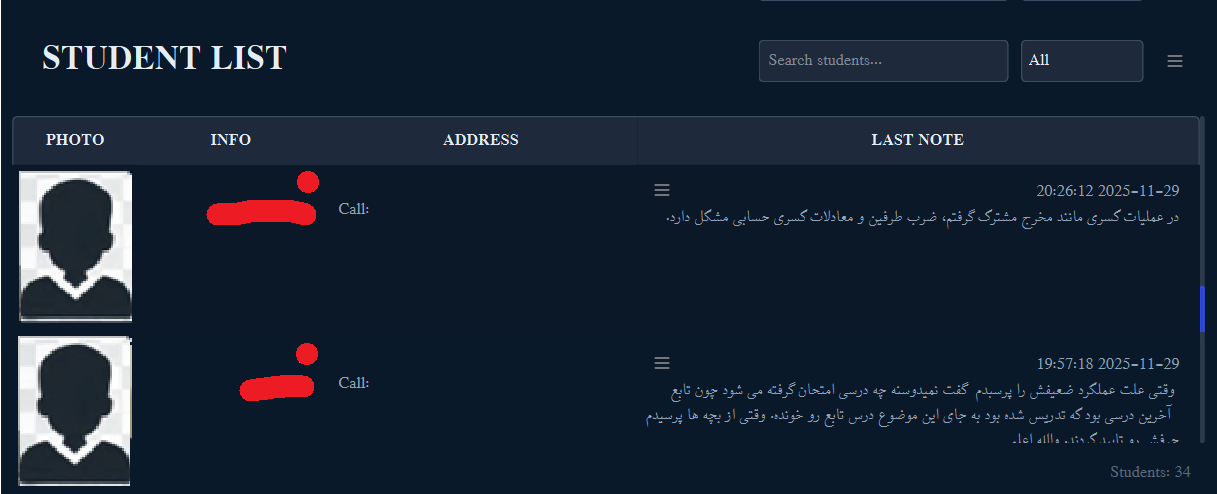
This page is one of the central working areas of the application. It provides a comprehensive tabular view of student profiles, including photos, contact details, and recent behavioral observations. It allows teacher to view, organize, analyze, and manage student records efficiently. This page is designed for both daily operational tasks (such as writing observations) and long-term academic management (such as grouping students, tracking progress, and assigning educational resources).
Main View
Table of Contents
Interface Overview
The page is divided into three main sections:
- Header Bar: Contains the page title, a search input, a group/class filter dropdown, and a main "Options" button.
- Student Table: Displays students in rows with four specific columns.
- Footer: Displays the total count of students currently visible in the list.
Table Columns
- PHOTO: Displays the student's profile picture. If no photo is available, it shows a placeholder text.
- INFO: Shows the Student ID and their full name (First Name, Last Name) in bold.
- ADDRESS: Shows the residential address and phone number.
- LAST OBSERVED BEHAVIOUR: Displays the most recent observed behavior entry, including the date and time. This column also contains the action menu button for the specific student.

Filtering and Searching
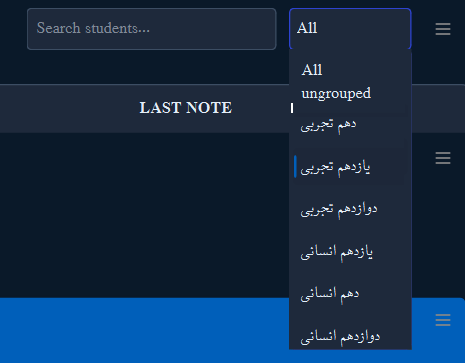
This figure shows three tools. Search input, classroom filters and global option menu.
You can quickly find specific students using the search box, make filter on the list by dropdown menu and do more
tasks using hamburger menu options.
When the user enters the text into search box, the system searches through the table. Search function loops through the list.
Pressing Enter searchs repeatedly through matches.
Use the dropdown menu to filter the list based on specific classroom groups. Select "All" to view every student in the database.
If the student does not included into a group, we say he/she is "ungrouped". and is filtered by this keyword.
expect these keywords, the user can define classrom groups that is shown in the dropdown list.

Dropdown menu and header tools
Global Options Menu
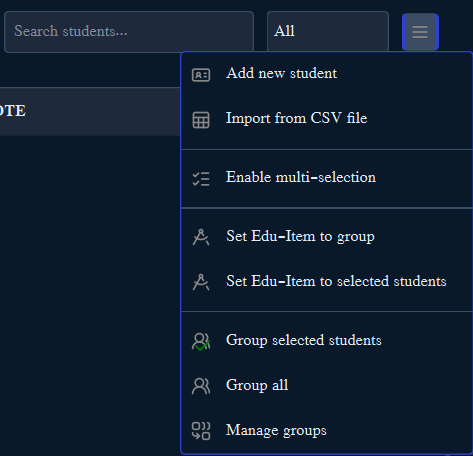
Clicking the Options Menu button (hamburger icon) in the top right corner reveals actions that affect the whole list or selected students.
Data Management
- Add New Student: Opens a blank form to register a new student in the database.
- Import from CSV File: Allows bulk importing of student data.
The CSV import feature requires strict column formatting. Ensure your CSV file matches the following column order exactly:
ID, First Name, Last Name, Parent Name, Phone, Address, Parent Phone, Additional Details, Gender, Date
Photos cannot be imported via CSV and must be added individually via the profile editor.
Manipulation
- Enable Multi-selection: Toggle this switch to select multiple rows in the table simultaneously. This is required for bulk operations like assigning items to specific students.
- Input score: Toggle this switch to enter earned scores for each student. This feature enables input box for each student under his/her name on "INFO" column. Also, It activates required buttons under the table. these buttons are "Load scores from file" and "Save" currently.
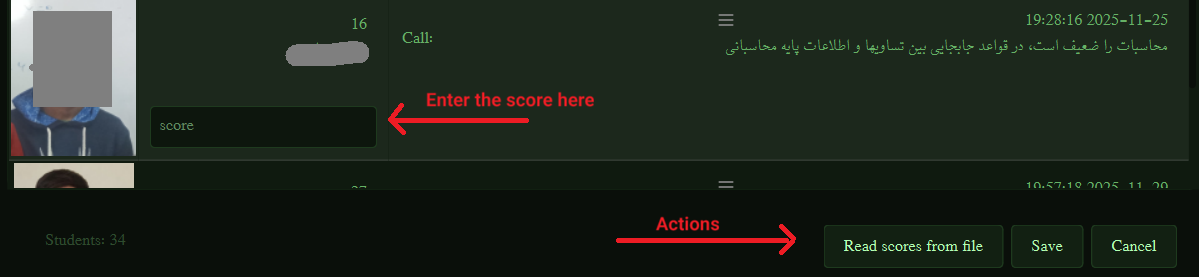
The Read scores from file reads numerical scores from txt or csv file and assigns each score to
a student in the list. the number of students and scores must be equal. the Save button saves the
assigned scores in the database finally.
Educational & Group Operations
These operations allow you to assign resources or organize students into groups.
- Set Edu-Item to group/selected/all: Opens the Educational Resources view to assign tasks or learning materials to the selected students or the entire group.
- Group selected/all: Opens a dialog to add the selected (or all) students to a specific classroom group.
- Manage Groups: Opens a dedicated dialog to create, edit, or delete classroom groups entirely.
Student-Specific Actions
Each student row has a Menu Button (hamburger icon) located in the "Last Note" column. Clicking this button opens a context menu with specific actions for that individual student.
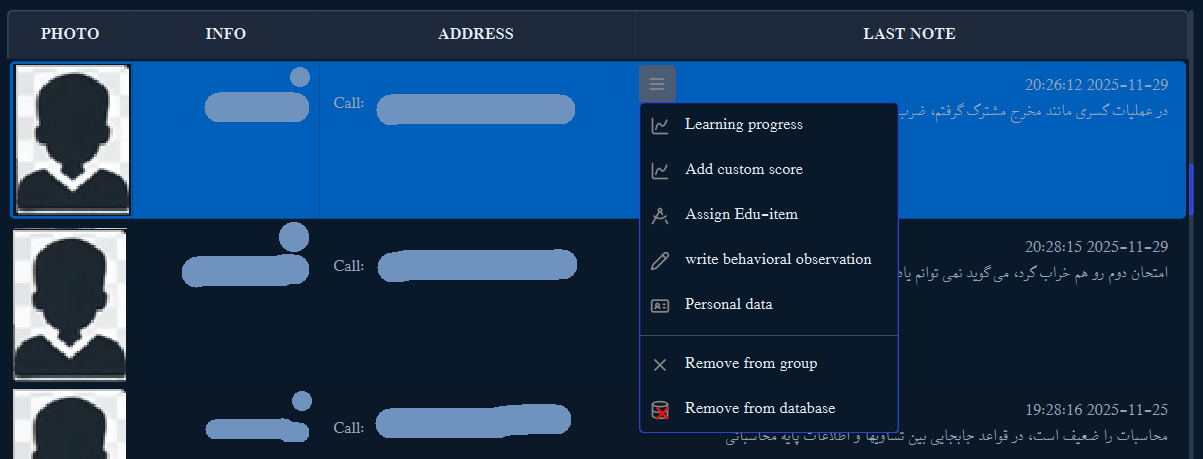
Features
- Learning Progress: Opens a detailed activity tracking page for the student.
- Assign Edu-item: Assigns specific educational resources to this single student.
- Add Custom Score: Allows adding a custom score/assignment not linked to a specific Edu-Item.
- Write Behavioral Observation: Opens a text editor to log a new behavior note for the student.
- Personal Data: Opens the student's full profile where you can edit details, addresses, and upload photos.
- Remove from Group: Removes the student from the currently filtered group (does not delete the student from the database).
- Remove from Database: Permanently deletes the student record and all associated behavior logs.