This page serves as the central hub for managing, distributing, and publishing educational content. It provides a comprehensive interface where teachers can browse educational resources (Edu-Items), assign them to students, and generate formatted educational materials using customizable templates. The page supports both immediate distribution to specific students and bulk content generation for classroom-wide use.
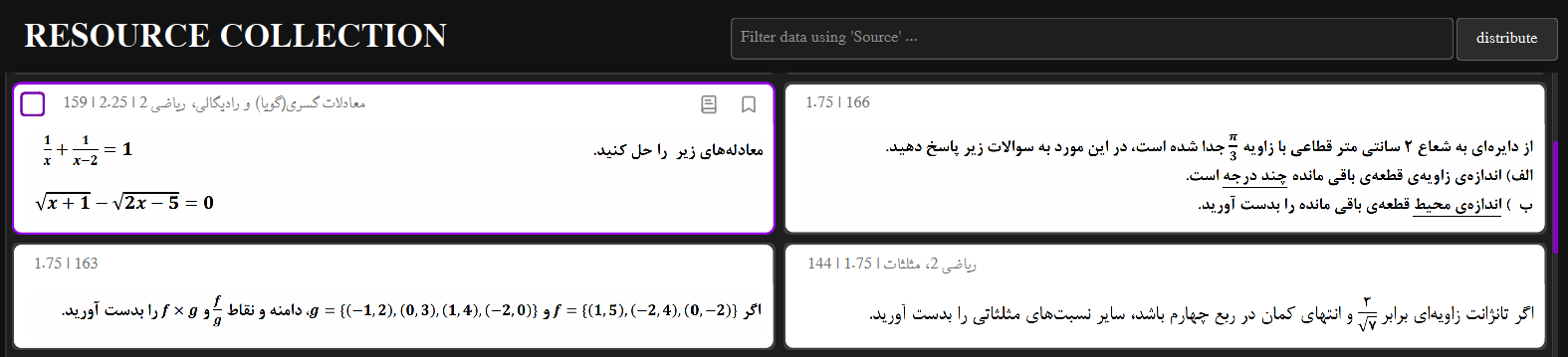
Main Educational Resources Interface
Table of Contents
Interface Overview
Layout Structure
The interface is organized into a 3×2 grid layout:
- Column 1 (Primary Workspace): Contains the main resource browsing area with filtering capabilities
- Column 2 (Actions & Configuration): Houses distribution controls, template settings, and action buttons
Default Display Settings
- Display Columns: 2-column grid layout for resource cards
- Page Size: 50 items per page for efficient browsing
- Paper Standard: A4 format (210mm / 8.27 inches width)
Header Components
- Page Title: "RESOURCE COLLECTION" - indicates the current view
- Source Filter: Text input field for filtering resources by source metadata
- Distribution Button: Dropdown menu for distributing selected resources to students

Header Section with Filtering Tools
Navigation & Operations
Resource Browsing
The main display area shows educational resources in a card-based grid. Each card represents an individual Edu-Item with the following information:
- Resource ID: Unique identifier for the educational item
- Content Description: Brief summary of the educational content
- Score/Points: Maximum achievable points for the item
- Source: Origin or category of the resource
- Additional Details: Supplementary information about the resource
Card Operations
Selection & Interaction
- Single Click: Selects a resource card and displays its details
- Multiple Selection: Hold
Ctrl(orCmdon Mac) to select multiple cards - Card Removal: Right-click on a card to access removal options
Grid Navigation
- Scroll: Navigate through pages of resources
- Auto-loading: Additional resources load automatically as you scroll
- Filter Responsive: Grid updates in real-time as filters are applied
Resource Management
Filtering System
The Source Filter input field allows you to search through educational resources using various criteria:
- Source Name: Filter by the source field of resources
- Content Description: Search within resource descriptions
- Additional Details: Filter by supplementary information
- Resource ID: Search by specific resource identifiers
Data Loading Strategy
The system implements efficient data loading to handle large resource collections:
- Pagination: Resources load in pages of 50 items each
- Lazy Loading: Additional pages load automatically as you scroll
- Background Processing: Data loading occurs in background threads to maintain UI responsiveness
- Memory Efficient: Only currently displayed resources are kept in memory
Distribution Workflow
Direct Distribution to Students
When accessed from the Student List page with pre-selected students, the distribution process is streamlined:
- Select Resources: Choose one or more educational items from the grid
- Configure Distribution: Click the
distributebutton to open distribution options - Set Timeline:
- Distribution Time: Defaults to current date (editable)
- Deadline: Defaults to 7 days from current date (editable)
- Review & Confirm: System shows a summary of selected items and target students
- Execute Distribution: Confirm to assign items to all selected students
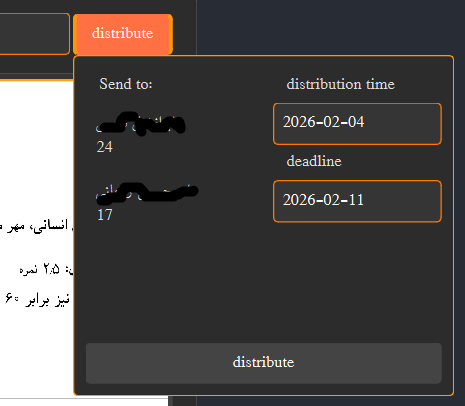
Distribution Configuration Dialog
Bulk Content Generation
When accessed without pre-selected students, the system shifts to bulk content generation mode:
- Template Selection: Opens a template selection dialog
- Content Customization: Fill in template-specific fields
- PDF Generation: Create formatted educational materials for printing or digital distribution
Template System
Available Templates
The system includes two primary templates for educational content generation:
01 - Classroom Quiz
- Purpose: Informal classroom assessments
- Required Fields:
- Student Name
- Book/Grade Information
- Date
- Format: Simple, clean layout focused on content
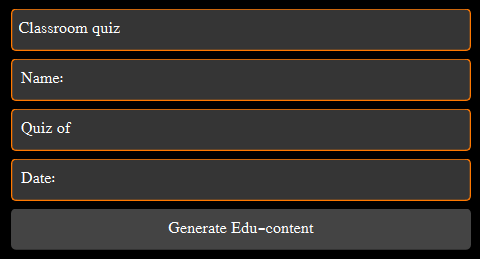
Classroom quiz configuration Dialog
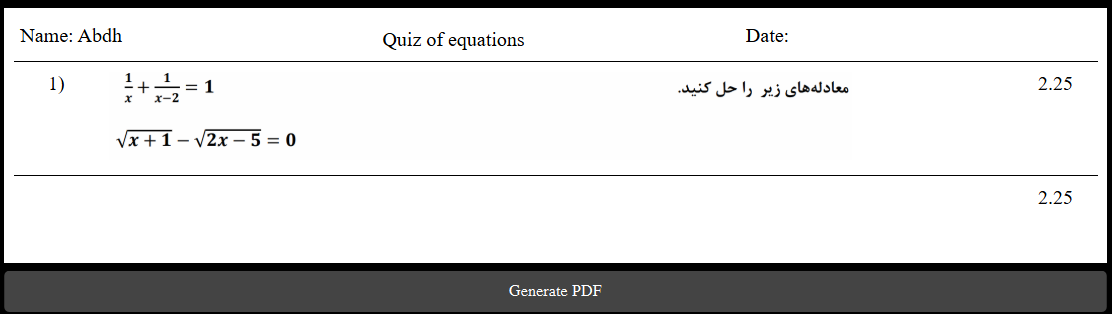
output of classroom quiz
02 - Formal Exam
Comprehensive examination papers
- Required Fields:
- Student Name & ID
- Teacher Name
- Organization Information
- Academic Year/Term
- Field of Study
- Date, Time, and Duration
- Author Information
- Format: Professional, formal layout suitable for official assessments
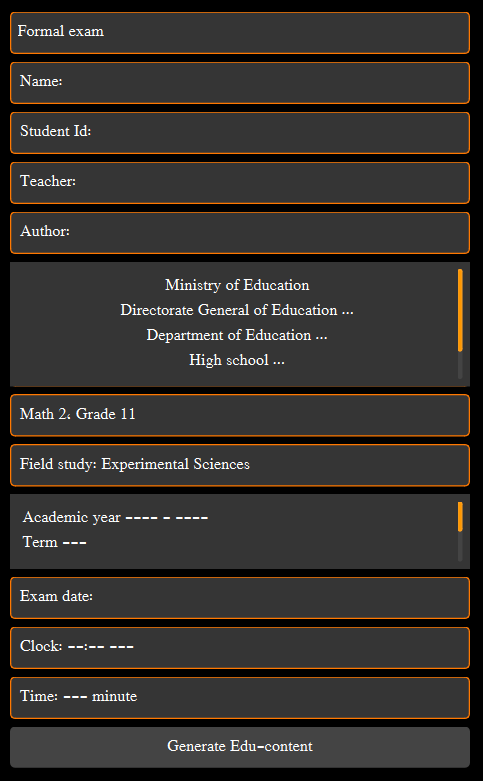
Formal exam configuration Dialog
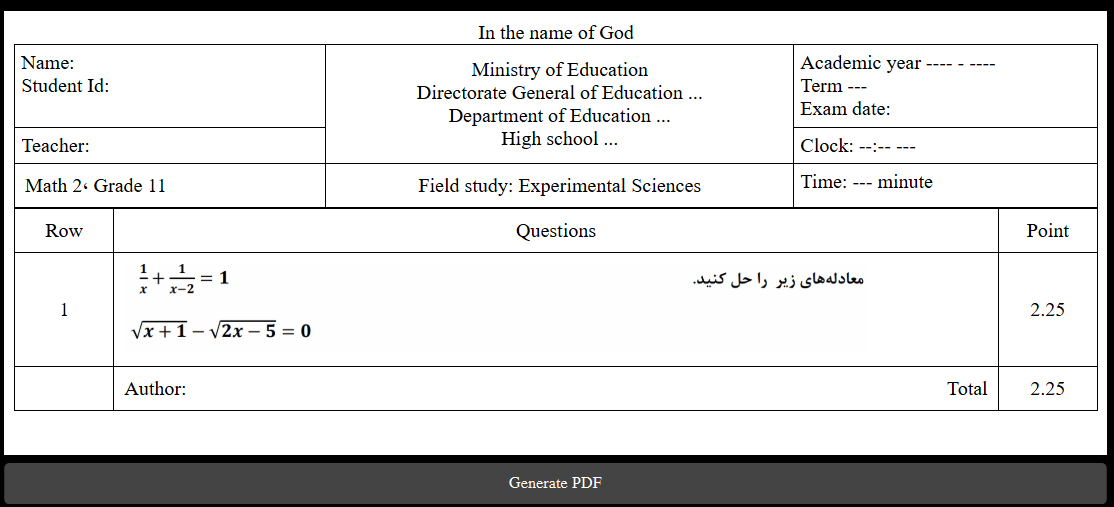
output of formal exam
Template Configuration
Each template supports language-specific configuration and automatic dimension calculation:
- Language Support: Templates adapt to the application's current language setting
- Automatic Sizing: Content width automatically adjusts to A4 paper dimensions
- Font & Direction: Template respects language-appropriate text direction (LTR/RTL) and font families
- Custom Placeholders: Support for institution-specific information and branding
\resources\templates\ directory. Each template consists of an HTML file and a JSON configuration file.
Content Generation Process
- Template Validation: System checks template file existence and integrity
- HTML Generation: Selected content is formatted according to template rules
- Placeholder Replacement: All template variables are replaced with actual content
- Dimension Calculation: Pixel dimensions are calculated based on DPI settings
- PDF Preview: Generated content is displayed in a preview window
- Export Options: Content can be saved as PDF or printed directly
Advanced Features
Database Integration
The Educational Resources View integrates seamlessly with the application database:
- Resource Storage: Edu-Items are stored in the
educational_resourcestable - Assignment Tracking: Student assignments are recorded in the
queststable - Transaction Safety: Distribution operations are performed within database transactions
- Error Handling: Comprehensive error reporting for database operations
Performance Optimizations
Loading Efficiency
- Background Threading: Data loading in separate threads
- Chunked Processing: Large datasets processed in manageable chunks
- Memory Management: Efficient resource handling to prevent memory leaks
UI Responsiveness
- Progressive Loading: UI remains responsive during data operations
- Visual Feedback: Loading indicators and progress feedback
- Error Recovery: Graceful error handling with user notifications
Accessibility Features
- Keyboard Navigation: Full keyboard support for all operations
- Screen Reader Compatibility: Proper ARIA labels and semantic HTML
- High Contrast Support: UI elements designed for visibility
- Internationalization: Support for multiple languages and text directions